显示标签为“article”的博文。显示所有博文

2017年4月10日星期一

Data Recovery - Finding lost images by using a quick way

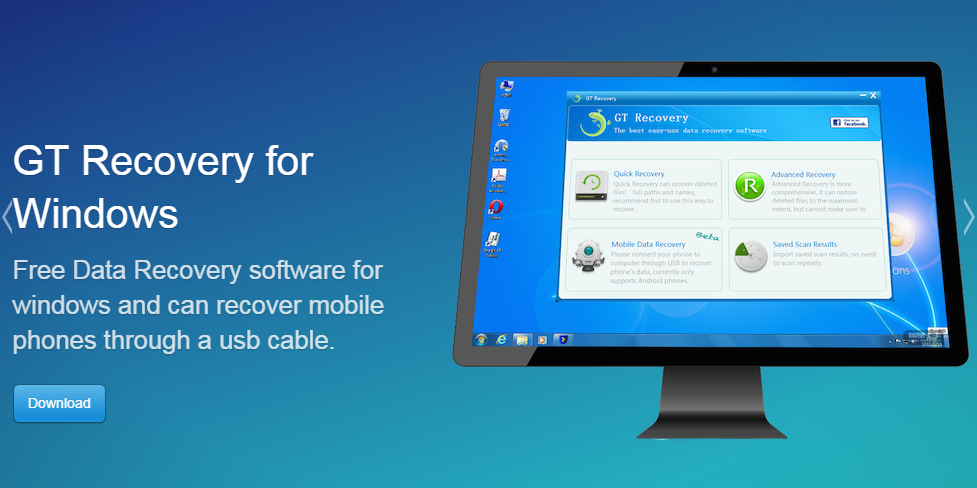
1). You need to download GT Recovery for Windows: www.gtrecovery.net


2). Install the software and open it.


3). Select the “Quick Recovery”, and choose the target disk to recover. Then, Click “Start” and the software start to find your lost images.


4). After finish recovering images, your need to select your lost images, and click “Recover”. Then, You can find recovered images in your saved file.


Now, you can quickly find your lost images by yourself.

2017年1月25日星期三

Free Data Recovery Software - How to recover deleted audios on PC

1). You need to download GT Recovery for Windows: www.gtrecovery.net


2). Install the software and open it.


3). Select the “Advanced Recovery”, and choose a target disk to recover. Then, Click “Start”.


4). After recovering your deleted audios, you need to select them and click the “Recover” button. They will save on your disk and you can open them.


So, you can recover your deleted audios by yourself.

2016年4月8日星期五

Recover Word Documents- How to restore deleted files from Android phone and tablets

There are many situations which can cause Microsoft Word document disappear. Such as power interruption, forced quit or close without saving changes. GT Recovery for Windows is the one that can help you recover lost word files. data recovery

data  recoverydata  recoverydata  recoverydata recovery
Supported: Microsoft Word Documents, Excel worksheets, PDF documents and more

Step 1.Choose Mobile Data Recovery
Launch GT Recovery for Windows, Click “Mobile Data Recovery ” on the homepage.

 data recovery
Step 2 .Connect your Android phone with your Computer and enable usb debugging
After connecting your Android phone to your computer via its digital cable, GT Recovery for Windows will recognize your phone automatically. Then you should click “Next” to let the program analyze your device.

 data recovery
Note: You'd better connect one device at a time.

To make sure that GT Recovery for Windows can find your Android phone, you should enable the USB debugging on your phone .The instruction will be shown on the window of GT Recovery for Windows.

 data recovery
 data recovery
Step 3. Choose Documents to scan
To save your time for the scanning process, after you click “Next”, you’ll be asked to select the data type to scan. If you only want to recover deleted videos from Android phone, you can choose ”Documents” .

 data recovery
After selecting Documents to scan, click “Start” to start the scan process.GT Recovery for Windows will check the operating environment of the phone.

 data recovery
If you have rooted your Android phone before, you have to allow GT Recovery Super user authorization on the screen of your device. Just click “Allow” when the message pops up on the device’s screen.


Step 5. Recover deleted videos on Android Device
The scanning process will last a few minutes. Documents which can be recovered will show in the result window. You can click “Documents” on the left sidebar to see it. If you have seen the documents you want to restore, you can click “Stop”. Then click the “Recover” button to recover the deleted documents to your computer.
y
data recovery data recovery data recovery data recovery
With this way you can recover deleted documents on any brands of Android device such as Samsung, HTC, Huawei, Sony, Motorola, Lenovo, LG, Sharp, etc.

2016年3月29日星期二

Data Recovery Software - How to recover deleted data from HTC One without root

Step 1
After launching GT Recovery for Windows, you'll get the primary window below.

Step 2
Please connect your Android device to the computer via a USB cable .GT Recovery will find your phone automatically.

Note: You'd better connect one device at a time.
If GT Recovery didn’t find your phone, you can click ”Did not find my phone?”.


Step 3
Select what data type you want to recover. Before starting, please make sure that the battery is more than 20%, to ensure a complete scan.


Step 4
Choose “Recover Directly” to restore deleted data without root your phone.

Step 5
Click the ”Back up my data” button on your android phone.


Step 6
start the scanning process, the records that can be restored will be shown in the list, you can stop the process any time you want: 

Note: Do not disconnect your device during the scan, or the scan will fail.
Step 7
The scan will take you a while. After that, you can preview all recoverable data found in the scan result one by one.
After preview, mark those you want and click "Recover" to save them in CSV on your computer.


With this way you can recover deleted data on any brands of Android device such as Samsung, HTC, Huawei, Sony, Motorola, Lenovo, LG, Sharp, etc.


2016年3月24日星期四

Android Root - How to root your phone with GT Recovery for Windows


Step 1 
After launching GT Recovery for Windows, you'll get the primary window below.


Step 2 
Please connect your Android device to the computer via a USB cable .GT Recovery will find your phone automatically.  


Note: You'd better connect one device at a time.
If GT Recovery didn’t find your phone, you can click ”Did not find my phone?”.


Step 3
Select what data type you want to recover, GT Recovery will start to check your phone’s operating environment automatically. Before starting, please make sure that the battery is more than 20%, to ensure a complete scan.


Step 4
Choose “Recover with Root” ,GT Recovery for Windows will help you root your phone.


Note: Do not disconnect your device during the root, or the root will fail.

With this way you can root any brands of Android device such as Samsung, HTC, Huawei, Sony, Motorola, Lenovo, LG, Sharp, etc.


NEXT : SMS Recovery Software- How to recover deleted text messages from LG G5 without root


2016年2月18日星期四

Deleted Facebook messages recovery - How to recover messages from SAMSUNG Galaxy s6

Step 1
Download GT Recovery for Android from the official website: http://www.gtrecovery.net/:


Step 2
Install and open it, if your device has not been rooted, GT will remind you to root device at first:


If your device has been rooted but you rejected GT’s application for superuser rights, GT will remind you:


Step 3
Once the superuser rights is obtained successfully, the home view will be shown. Click “Recover Messenger” on homepage:


Step 4
GT Recovery will start to check messenger installation automatically. After that Click “Scan Deleted Chats” to start new scan.


Step 5
The messages that can be found will be shown in the list, you can stop the process any time you want:


Step 6
After scanning, you can choose the messages you need. Doesn’t find message you want ? Click “Restart scan” :

Tips:
1.      The steps are similar to recover other data.
2.      We are always looking to hear of ways to make our software better, and if you have any suggestions or questions about the software, we are here to listen and help!
https://www.facebook.com/GT-Recovery-1655686831368830/
3. If you like our software, please share it, sincere thanks for your support.


2016年2月16日星期二

call logs recovery-How to recover deleted call history from Android phone

Step 1
Download GT Recovery for Android from the official website: http://www.gtrecovery.net/
:


Step 2
Install and open it, if your device has not been rooted, GT will remind you to root device at first:


If your device has been rooted but you rejected GT’s application for superuser rights, GT will remind you:


Step 3
Once the superuser rights is obtained successfully, the home view will be shown. Click “Recover Call Log” on homepage:


Step 4
If you have saved scan results before it will be show on this page. Click “Start new scan” to start new scan.


Step 5
The call that can be restored will be shown in the list, you can stop the process any time you want ,and preview the scan results:


Step 6
After scanning, you can choose the Call Log you need, then click the button on the below to save the chosen Call Log:


Step 7
Click ‘View the result’ in the dialog popped up to check the files you just saved.


Tips:
1.The steps are similar to recover other data.
2.We are always looking to hear of ways to make our software better, and if you have any suggestions or questions about the software, we are here to listen and help!
https://www.facebook.com/GT-Recovery-1655686831368830/
3. If you like our software, please share it, sincere thanks for your support!