2017年1月25日星期三

Free Data Recovery Software - How to recover deleted audios on PC

1). You need to download GT Recovery for Windows: www.gtrecovery.net


2). Install the software and open it.


3). Select the “Advanced Recovery”, and choose a target disk to recover. Then, Click “Start”.


4). After recovering your deleted audios, you need to select them and click the “Recover” button. They will save on your disk and you can open them.


So, you can recover your deleted audios by yourself.

2017年1月23日星期一

GT Recovery for Windows - How to recover deleted call logs from Samsung phone


GT Recovery for Windows Download: www.gtrecovery.net

GT Recovery for Windows is a professional data recovery for PC. It can restore deleted photos, videos, audios, documents from PC Disk and USB storage.

So, if you want to recover your deleted call logs from your Samsung phone. Claim it here. This video will show you the function to recover deleted call logs.


Google+: https://plus.google.com/communities/109657948177651590858

Facebook homepage: https://www.facebook.com/GT-Recovery-for-Windows-527139864132104/

2017年1月16日星期一

Free PC Data Recovery Software - How to use “Quick Recovery” with GT Recovery for Windows


GT Recovery for Windows Download: www.gtrecovery.net

GT Recovery for Windows is a professional data recovery for PC. It can restore deleted photos, videos, audios, documents from PC Disk and USB storage. Whenever you lost important data or deleted data by accident, you can use it to scan and recover the files on your PC Disk and USB storage.

Watch this video and you will find how to use “Quick Recovery” to recover your deleted data.

2017年1月9日星期一

Free Facebook chat and Messenger recovery - How to recover deleted Messenger messages on Android phones and tablets


We use Facebook daily to do conversation with our friends, relatives and sometimes with our profession clients too.

It's very important for us to get those conversations back if mistakenly they can deleted. Some common situations that lost Facebook messages you can recover from:
1). accidentally deleted it on your android phone
2). lost messages after Android 5.0 updated or other Android upgrade
3). save messages from water damaged, crashed, broken or smashed Android phone
4). Android deleted messages randomly by itself
5). Factory restore Android phone
And more...

Watch this video and share it with your friends too so that they can also get their precious lost data back.

Facebook: https://www.facebook.com/GT-Recovery-1655686831368830/
Google+: https://plus.google.com/b/104262930171005765283/communities/117325098536876636099

2017年1月3日星期二

Free Data Recovery for Windows - How to Recover USB Memory

If you want to use GT Recovery for Windows to recover your data from USB Memory, you need to read this article. We will tell you how to use our software.

Device Type: Computer
System Version: Windows 7

Step 1:
You need to start "GT Recovery for Windows". Click the “Advanced Recovery” button.


Step 2:
Select the USB Memory ( like “E Disk”). Click "Start" button.


Step 3:
The software begin to recovering data, and we can watch the recovered data.


Step 4:
When the software has stopped, click “Save Results” button and you can find the results in your file.


Step 5:
If you want to recover the recovered data, click “Recover” button and you will find the data in your file.


2016年12月26日星期一

Photo Recovery-How to recover deleted photos on Samsung phones


GT Photo Recovery for Android Download: https://play.google.com/store/apps/details?id=mobi.bihu.recovery.photo&pageId=104262930171005765283.

Lost your photos on Android phone & need to recover deleted pictures, try GT Photo Recovery for Android.

It can directly recover deleted pictures and photos lost due to deleting, restoring factory settings, flashing ROM, rooting, etc., from SD cards inside Android devices. It let you preview the deleted photos before recovery. Watch the video tutorial to learn how to retrieve photos from Android phone easily with simple clicks.

Key features of Data Recovery – GT Photo Recovery for Android: 
1). Preview & selectively retrieve photos lost due to any problem
2). Support all Android phones/tablets, like Samsung, HTC, LG, Motorola...
3). Only read and recover your photos, no personal info leaking, 100% safe

Facebook: https://www.facebook.com/GT-Recovery-16556868313­68830/
Twitter: https://twitter.com/GtRecoveryapp

2016年12月24日星期六

HOW TO INSTALL ANDROID USB DRIVERS ON YOUR COMPUTER

Ah, USB drivers, where would we be without them? What's that? You don't even know what they do? Well I'm glad you asked. Whether you own a Nexus 5, Galaxy S4 or LG G2, USB drivers are the things that make the connection between your computer and Android via a USB cable possible. If you want to access your phone like external storage or transfer files from your phone to you computer for safekeeping then you're going to need USB drivers to make it happen.

USB ports aren't just there for collecting dust.

The good news

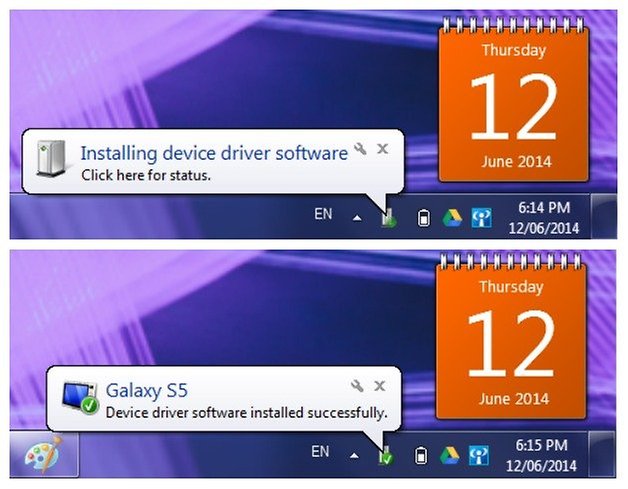
The best part of USB drivers is that your computer knows it needs them when you first plug your Android into your computer with a USB cable. You'll usually see a little notification bubble pop up saying a new device has been connected and that your computer is searching for and then installing the necessary drivers, as in the image below.
AndrodiPIT Galaxy S5 Driver Install PC
When I plugged the Galaxy S5 into my laptop Windows automatically installed the drivers for me.

 
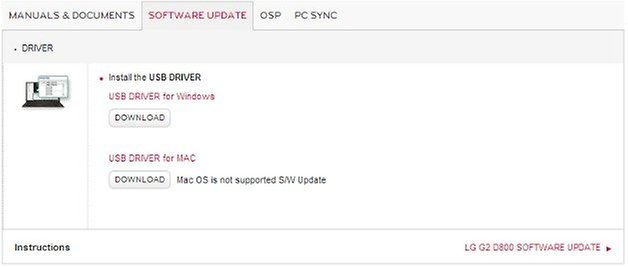
If you don't see that message then don't despair. Finding the requisite drivers for your device is no harder than clicking a simple link. You have a couple of options here, you can either Google your device name with ''driver'' after it, or you can visit your manufacturers support page and find the drivers there - like this one for the Samsung driver - or you can take the easy route and visit the Android Developers OEM drivers page which has all the major manufacturer drivers listed. Just make sure you get the driver for your computer's OS (Linux and Mac users can usually get away without any drivers at all). Here's the major ones.
Asus          HTC          Huawei          LG         Motorola         Oppo         Samsung         Sony
LG G2 Driver Install PC
Manually grabbing the driver for your device is super easy too.
You can also download common drivers from this: https://github.com/koush/support-wiki/wiki/Android-ADB-Drivers
Once you've got the driver, just install them as you would anything else on your computer. If you're after the Google driver because you have a Nexus device or you want to enable the Android Debug Bridge (ADB) for sideloading and other terminal commands, then you can get that on the Android Developer's Google USB Driver page too. They have full install instructions that I won't go into here.