2016年5月4日星期三

Why should we root Android?

Android smartphone is incredibly powerful but we only get a small taste of it. Root your device and experience the full potential your device can offer. Caution! Rooting will void your warranty and your phone may get bricked.


What is root?

”Root ” your device means obtaining “superuser” rights and permissions to your Android’s software. In fact, Root android is not complicated, all you have to do is to download some root software and click root button. But whether the Root process will be successful is up to your phone itself.

Some Reasons Why You Should Root Your Phone

Free tethering
If you root your phone you can tether your phone's connection for Free. Which means you needn't pay for the internet you use on your phone to PC or TV straight away from your phone’s data pack.

Get rid of adverts from application
Many applications on Google Play are free because they serve you adverts. After rooting your phone you can use apps(root only) which can remove adverts without pay .

Better customization
The entire phone will look and behave as unique as you wish it to. A Rooted phone will give you customization options includes custom keyboards, custom launchers and custom ROMS.

Install apps from the Play Store that are prohibited and limited only to Rooted users
Some apps in Google play are limited to Rooted device and can not be used in non rooted phone such as “Titanium Backup” and “GT Recovery for Android”.

Increase battery life and speed
Some or all features of app which meant for saving battery are only supported by rooted phone.

Recover Deleted Data
Since the data recovery process needs to scan some system level files, and these files can only be accessed by a superuser. So if you want to recover deleted data ,you have to root your phone.


2016年4月8日星期五

Recover Word Documents- How to restore deleted files from Android phone and tablets

There are many situations which can cause Microsoft Word document disappear. Such as power interruption, forced quit or close without saving changes. GT Recovery for Windows is the one that can help you recover lost word files. data recovery

data  recoverydata  recoverydata  recoverydata recovery
Supported: Microsoft Word Documents, Excel worksheets, PDF documents and more

Step 1.Choose Mobile Data Recovery
Launch GT Recovery for Windows, Click “Mobile Data Recovery ” on the homepage.

 data recovery
Step 2 .Connect your Android phone with your Computer and enable usb debugging
After connecting your Android phone to your computer via its digital cable, GT Recovery for Windows will recognize your phone automatically. Then you should click “Next” to let the program analyze your device.

 data recovery
Note: You'd better connect one device at a time.

To make sure that GT Recovery for Windows can find your Android phone, you should enable the USB debugging on your phone .The instruction will be shown on the window of GT Recovery for Windows.

 data recovery
 data recovery
Step 3. Choose Documents to scan
To save your time for the scanning process, after you click “Next”, you’ll be asked to select the data type to scan. If you only want to recover deleted videos from Android phone, you can choose ”Documents” .

 data recovery
After selecting Documents to scan, click “Start” to start the scan process.GT Recovery for Windows will check the operating environment of the phone.

 data recovery
If you have rooted your Android phone before, you have to allow GT Recovery Super user authorization on the screen of your device. Just click “Allow” when the message pops up on the device’s screen.


Step 5. Recover deleted videos on Android Device
The scanning process will last a few minutes. Documents which can be recovered will show in the result window. You can click “Documents” on the left sidebar to see it. If you have seen the documents you want to restore, you can click “Stop”. Then click the “Recover” button to recover the deleted documents to your computer.
y
data recovery data recovery data recovery data recovery
With this way you can recover deleted documents on any brands of Android device such as Samsung, HTC, Huawei, Sony, Motorola, Lenovo, LG, Sharp, etc.

2016年4月1日星期五

Deleted WhatsApp conversations from Samsung Galaxy S6?Let GT Recovery help you!


samsung galaxy
no root !
Many people are asking for how to recover deleted WhatsApp messages.
It's very important for us to get those conversations back with out backup whatsapp if mistakenly they can deleted.
Some common situations that lost Whatsapp msg you can recover from:
1. accidentally deleted it on your android phone
2. lost messages after Android 5.0 updated or other Android upgrade.
3. save messages from water damaged, crashed, broken or smashed Android phone
4. Android deleted messages randomly by itself
5. Factory restore Android phone.
And more...
With this way you can recover deleted messages on any brands of Android device such as Samsung, HTC, Huawei, Sony, Motorola, Lenovo, LG, Sharp, etc.
Facebook: https://www.facebook.com/GT-Recovery-for-Windows-527139864132104/
Twitter:https://twitter.com/GtRecoveryapp
Download Link 


NEXT: File Recovery Software - Restore deleted videos on Android phone or tablets with GT Recovery for Windows

2016年3月31日星期四

File Recovery Software - Restore deleted videos on Android phone or tablets with GT Recovery for Windows

Have you deleted videos on your Android by accident?
It’s really a pity that you just let it go,because you have a better option-try GT Recovery for Windows!


Note: video in .mp4,.avi,.mpg,.mov,.wmv,.3gp are supported

Step 1.Choose Mobile Data Recovery

Launch GT Recovery for Windows, Click “Mobile Data Recovery ” on the homepage.


Step 2 .Connect your Android phone with your Computer through a USB Cable

After connecting your Android phone to your computer via its digital cable, GT Recovery for Windows will recognize your phone automatically. Then you should click “Next” to let the program analyze your device.


Note: You'd better connect one device at a time.

To make sure that GT Recovery for Windows can find your Android phone, you should enable the USB debugging on your phone .The instruction will be shown on the window of GT Recovery for Windows.


Step 3. Choose Videos to scan

To save your time for the scanning process, after you click “Next”, you’ll be asked to select the data type to scan. If you only want to recover deleted videos from Android phone, you can check ”Media” .


After selecting Media to scan, click “Start” to start the scan process.GT Recovery for Windows will check the operating environment of the phone.

how to recover
If you have rooted your Android phone before, you have to allow GT Recovery Super user authorization on the screen of your device. Just click “Allow” when the message pops up on the device’s screen.

how to recover
Step 5. Recover deleted videos on Android Device

The scanning process will last a few minutes. Videos which can be recovered will show in the result window. If you have seen the videos you want to recover, you can click “Stop”. Then click the “Recover” botton to recover the deleted videos to your computer.


With this way you can recover deleted videos on any brands of Android device such as Samsung, HTC, Huawei, Sony, Motorola, Lenovo, LG, Sharp, etc.


2016年3月30日星期三

Photo recovery software- Fully retrieve lost data from Android phone and tablets with GT Recovery for Windows

GT Recovery for Windows is a professional photo recovery for Android phone or tablet. It can restore deleted photos from Android SD card and internal memory. Whenever you lost important pictures or deleted photos by accident, you can use it to scan and recover the images on your Android devices. Here are the steps to recover deleted photos on Android.
recover files
recover files
Supported photo Formats: jpg,png,gif

Step 1.Choose Mobile Data Recovery

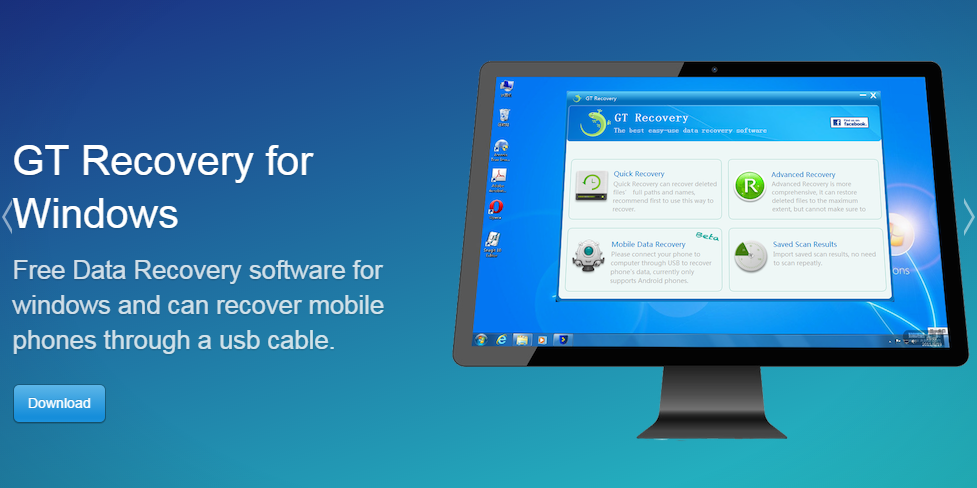
Launch GT Recovery for Windows, Click “Mobile Data Recovery ” on the homepage.

recover files
Step 2 .Connect your Android phone with your Computer via a USB Cable

After connecting your Android phone to your computer via its digital cable, GT Recovery for Windows will recognize your phone automatically. Then you should click “Next” to let the program analyze your device.

recover files
Note: You'd better connect one device at a time.

To make sure that GT Recovery for Windows can find your Android phone, you should enable the USB debugging on your phone .The instruction will be shown on the window of GT Recovery for Windows.


recover files
Step 3. Choose data type what you want to recover

To save your time for the scanning process, after you click “Next”, you’ll be asked to select the data type to scan. Since your purpose is to recover photos, you should check ”Photograph” .Click “Start” to let the program analyze your Android device.


recover files
If you have rooted your Android phone before, you have to allow GT Recovery Super user authorization on the screen of your device before the scan. Just click “Allow” when the message pops up on the device’s screen.

recover files
Step 5. Preview and Recover deleted photos on Android Device

The scanning process will last a few minutes. During the process, you can preview the photos. If you have seen the photo you want to recover, you can click “Pause”. Then check the pictures and click “Recover” at the bottom of the program.


recover files
With this way you can recover deleted photos on any brands of Android device such as Samsung, HTC, Huawei, Sony, Motorola, Lenovo, LG, Sharp, etc.


2016年3月29日星期二

Data Recovery Software - How to recover deleted data from HTC One without root

Step 1
After launching GT Recovery for Windows, you'll get the primary window below.

Step 2
Please connect your Android device to the computer via a USB cable .GT Recovery will find your phone automatically.

Note: You'd better connect one device at a time.
If GT Recovery didn’t find your phone, you can click ”Did not find my phone?”.


Step 3
Select what data type you want to recover. Before starting, please make sure that the battery is more than 20%, to ensure a complete scan.


Step 4
Choose “Recover Directly” to restore deleted data without root your phone.

Step 5
Click the ”Back up my data” button on your android phone.


Step 6
start the scanning process, the records that can be restored will be shown in the list, you can stop the process any time you want: 

Note: Do not disconnect your device during the scan, or the scan will fail.
Step 7
The scan will take you a while. After that, you can preview all recoverable data found in the scan result one by one.
After preview, mark those you want and click "Recover" to save them in CSV on your computer.


With this way you can recover deleted data on any brands of Android device such as Samsung, HTC, Huawei, Sony, Motorola, Lenovo, LG, Sharp, etc.


2016年3月24日星期四

Android Root - How to root your phone with GT Recovery for Windows


Step 1 
After launching GT Recovery for Windows, you'll get the primary window below.


Step 2 
Please connect your Android device to the computer via a USB cable .GT Recovery will find your phone automatically.  


Note: You'd better connect one device at a time.
If GT Recovery didn’t find your phone, you can click ”Did not find my phone?”.


Step 3
Select what data type you want to recover, GT Recovery will start to check your phone’s operating environment automatically. Before starting, please make sure that the battery is more than 20%, to ensure a complete scan.


Step 4
Choose “Recover with Root” ,GT Recovery for Windows will help you root your phone.


Note: Do not disconnect your device during the root, or the root will fail.

With this way you can root any brands of Android device such as Samsung, HTC, Huawei, Sony, Motorola, Lenovo, LG, Sharp, etc.


NEXT : SMS Recovery Software- How to recover deleted text messages from LG G5 without root